Get your morning news with Automator  7
7
Being a creature of habit I like to get up in the morning, wash and get dressed, have some coffee, eat my breakfast and then sit myself in front of my iMac with another coffee and catch up on all the news that’s broken since I hoisted myself into bed 11 hours earlier - I check my email, read my news feeds and then check a few websites along with my customers sites to make sure every thing’s ticking over nicely.
It doesn’t take much effort to launch all the applications and click on the appropriate buttons I need to get the computer part of this morning routine done, but I thought it’d be nice if I could cut down the amount of brain power needed by having everything ready for me by the time I took my place at the desk. Why? Partly because I’m not usually firing on all cylinders until I’ve been awake for about an hour and partly because I’m bored and I wanted something to do. As the more observant amongst you may have deduced: I’m going to be doing this with OS X’s not-brilliant-but-still-fairly-useful Automator.
For this process, I’m assuming that Mail is your default email client, Safari is your default web browser and NewsFire is your feed reader of choice. Also, whenever I say something like:
Add the Mail » Get New Mail action
… I’m actually saying:
Select Mail in the “Library” column of the Automator window and drag the Get New Mail action from the “Action” column into the workflow area in the right-hand side of the Automator window
So, firing up Automator we can tackle the easy bits first, i.e. checking email and launching the feed reader:
- add the Mail » Get New Mail action and select All Accounts or whichever account your prefer from the For: drop-down list;
- add the Finder » Launch Application action and select NewsFire from the drop-down list - obviously, you can select a different feed reader or indeed any application you want to launch.
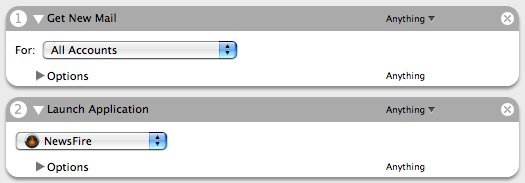
If your email application isn’t already open then the Get New Mail action will launch it.
The next bit, opening my web browser with various websites displayed, wasn’t as easy - it’s by no means difficult but took a bit of trial and error to get right. The seemingly obvious thing to do would be to add the Safari » Get Specified URLs action followed by the Safari » Display Webpages action, but this results in the pages all being opened in separate Safari windows rather than a single window with multiple tabs even with the in a new tab in the current window radio button selected in the Open links from applications option in Safari’s preferences:
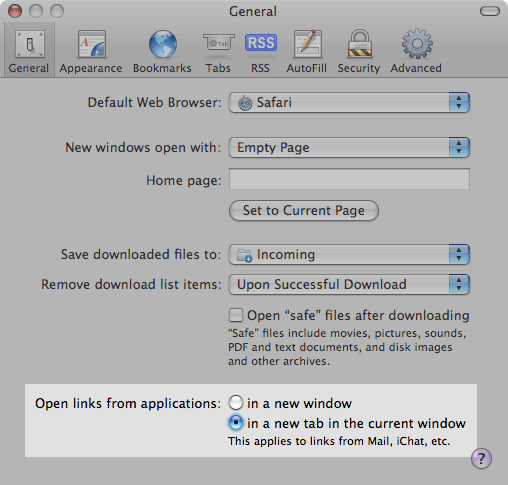
Fortunately, there is a way round this and, as a bonus, it makes adding or removing websites from the list to be opened easier.
Create a new folder in the location of your choice and give it a suitable name - I named mine “Morning news” and put it in my home folder and, to make adding websites easier, I also added this folder to my dock.
Now navigate to one of the websites you want displayed each morning and drag the icon from Safari’s address bar into your newly created folder - this creates a “Web Internet Location” file which is basically a shortcut to that website. Repeat this for each website you want opened each morning. If you want to remove a website from the list, simply move its Web Internet Location file to the trash.
As Mikewake pointed out, it appears that it’s not possible to drag a site’s icon from Safari’s address bar to a folder in the dock - it must first be dropped onto the desktop and then dragged from there and dropped into the folder in the dock.
Back in Automator:
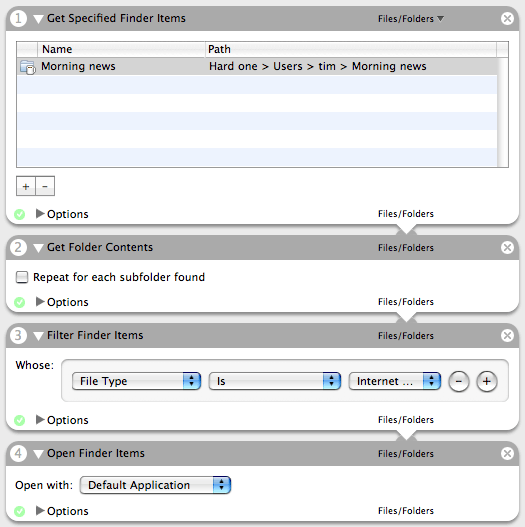
- add the Finder » Get Specified Finder Items action and add the folder you’ve just created by selecting the “+”, navigating to the folder and selecting “Open”;
- add the Finder » Get Folder Contents action;
- add the Finder » Filter Finder Items and set the criteria to File Type » Is » Internet File Location - this, confusingly, only lets through the “Web Internet Location” files we created earlier;
- add the Finder » Open Finder Items action - you can leave the Open with: drop-down list as Default Application if you wish or select a browser of your choice.
A few final touches …
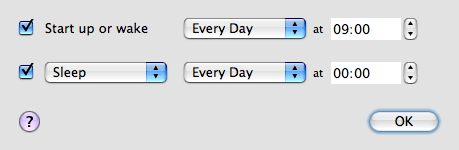
Set your Mac to wake up at a specific time by going to System Preferences » Energy Saver » Schedule and selected your preferred time:
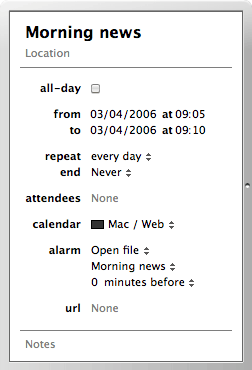
Finally, add a re-occuring event in iCal with an alarm to launch your workflow:
Update: I submitted this to Automator World and it also got picked up by Automator Actions.
 Wow, I’ve never really realized the power of Automator for daily stuff, this is awesome! - LobsterMan
automator’s ace! the only problem is that i’m far too lazy to do stuff like this. if i could train it to tidy my php and iron my shirts for me, i’d use it all-day-every-day - Jasper
I really like this one. I’ve created several actions myself. However, since I have a hard time reading longer articles online, I sometimes print out the ones I want to read for later in the evening before going to sleep. So what I’ve trying to figure out is an action that would would retrieve selected articles on the web and put them in a text document for printing. Any ideas? - Bakari
Hi Bakari. That’s not a bad idea - I’ll look into it an let you know. - Timmargh
Hi, Timmargh.
MacHeadCase pointed me in your direction. I came across this thread on Automator, so here’s my two cents.
I never used Automator, believing that AppleScripts would outperform it, though I merely download from the net anything the least complicated or do without. I suppose I thought of Automator as being a three-speed-automatic transmission in a Ferrari. (I had Quickeys in OS 8 and 9, and still miss that program.)
But a few nights ago I started playing with Automator, and soon I had a wonderful bunch of scripts controlling iTunes. Now I click on an playlist, and iTunes starts and hides and the list plays on. I also set up a few Automator equalizer scripts. I think I could set the equalizer to change for individual songs, but I haven’t gone that far with it yet — a recording by Ellington made in 1927 coming immediately after a recording he made 40 years later begs for intervention by the iTunes’ equalizer. Of course, Automator runs any AppleScript, too.
Automator has lots of stuff to play with. Loads of fun. - Bob
Hi Bob.
Automator can be quite handy if you’re prepared to spend a bit of time tinkering with it - I’ve got a few workflows that run at various doing odd jobs for me. Have you got a site you can publish the workflows you create to? I’ve submitted one or two to Automator World and Automator Actions.
As for the equaliser settings - can’t you set them per song in iTunes via File > Get Info > Options > Equaliser preset ? - Timmargh
Holy moly! I didn’t realize I could set the equalizer separately. Geez, and here I am babbling on about Automator, after using iTunes since the Year 1, and trying to reinvent the wheel.
I haven’t a site I can put the scripts on, and anyway, the ones I have are all the same except for the names of the playlists.
Now excuse me while I go into the garden to eat worms. - Bob
Comments