Easy backups with Automator and smart folders  15
15
A while back I did some bitching and moaning about not being able to use Finder’s smart folders for doing backups. A quick recap, minus the whinging: I wanted to be able to label files with colours and have them copied to my iDisk using an Automator workflow. I tried … and failed. So I cobbled together an alternative solution marking files with Spotlight comments instead of colours. It did the job, but not the way I wanted … * grumble *
But now someone has, at last, written the one action for Automator that I’ve been waiting for all along: Get Smart Folder Contents. So, without further ado I wrote the workflow I always wanted to.
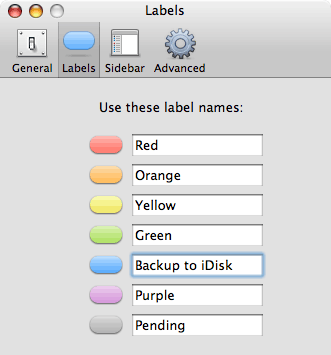
The first thing to do was to rename the blue colour label in Finder » Preferences » Labels - this isn’t strictly necessary, but when your memory’s as bad as mine, every little helps:
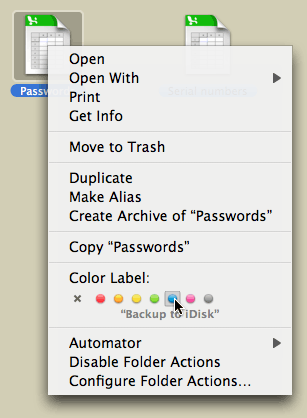
Next, mark some files with your chosen colour:
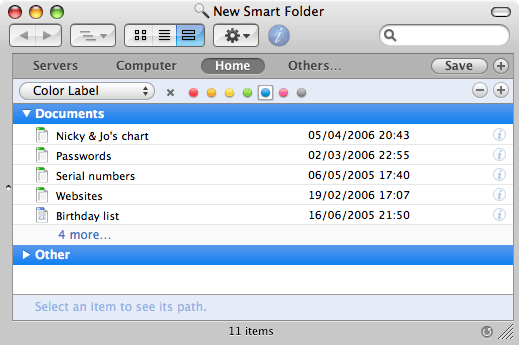
Now create a smart folder to search for the marked files:
And, finally, open Automator and create the workflow - all these actions can be found under Finder in the Library column:
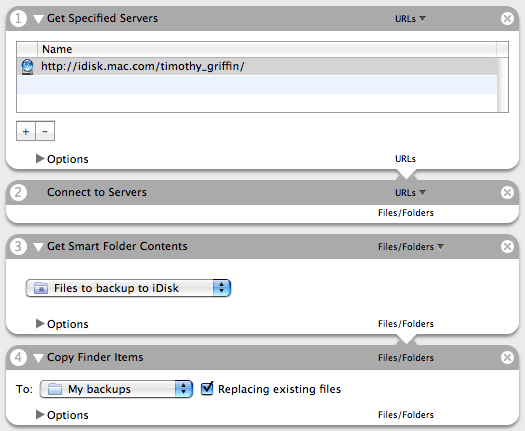
The first two actions are only necessary if you’re backing up to your iDisk, as I am. Save the workflow as an application and you can add a re-occuring event to iCal for full automation:
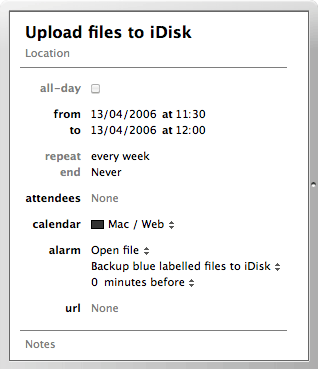
Now you can swan around in Finder, marking files and sleep safe in the knowledge that they’ll be backed up next time the workflow runs.
 You find the niftiest stuff, Timmy! Thank you so much for this!
Oh and I love the latest tweak you made to your blog. :^) - MHC
You find the niftiest stuff, Timmy! Thank you so much for this!
Oh and I love the latest tweak you made to your blog. :^) - MHC
Cheers, MHC.
:^) - Timmargh
Nice, but…
Can you make it so that it copies only the files that have changed since the last backup? - germ
I suppose it’s possible using AppleScript or something similar, but I wanted it to be nice and simple.
You can do it by adding a Last Modified criteria to the smart folder - the trouble with this is that you’d have to alter the date each time you did a backup. - Timmargh
The only problem with this solution is that you have now used up your Finder label just telling it to backup the files. Finder Labels are much more useful for day to day information rather than as a metatag for Automator. The Spotlight comment bit sounds like a much more helpful solution. - Berko
Yeah, you can use either but I just prefer to use this method. - Timmargh
My world, she is rocked. Thanks for spelling it all out. - Andrew
Thank you for the lovely tutorial! I’m slowly but surely learning how to make my life easier using Automator—you’ve helped a little. :) - Carla
germ, you may have discovered this by now but I think it is possible to only copy files that have changed. There is an Automator action available called compare-folders which looks at two user-selected folders to determine which files are different.
The output from that could be be followed by an appropriate copy action. I’ve used it a few times but it does choke on one of the filenames in my music library. T think I found it on Automatorworld.com - Slydude
This is definitely an interesting idea. I have got to experiment with it a bit mire. The last time I tried creating Smart folders I had trouble with it. I think my problem was Spotlight which apparently isn’t good for what I wanted to do. - Slydude
Do you have to input your name and password each time you run this to connect to the idisk? Does automator allow you to specify this info so you just run it and walk away? - Adam
You should only need to enter your name and password into System Preferences -> .Mac and then Automator will simply connect for you. - Timmargh
Brilliant!
But� what if I have several files with the same name in different directories? Could I preserve somehow the directory tree? I suppose this has to do with the way the “Get smart folder contents” is implemented� - Andrea
Unfortunately this method would cause some conflict as all the files being copied are going into a single directory - I’m not sure how you’d go about preserving the directory tree.
Anyone else have any ideas? - Timmargh
Hi,
I was looking for a way to save the contents of a smart folder as a simple text list, but I can’t get this done using your automator component. I tried to print the result of your component and then choose PDF rather than a printer, but automator doesn’t give me that choice either.
Is there a simple way to get a text list of all files in a smart folder, either using your component, or a modified version of it, or any other straightforward method?
Any ideas would be highly welcome (by mail please)
Keep hacking,
K. - Karsten Seiferlin
Comments