Backup files automatically by selecting them in Finder  0
0
A while back I did some complaining about the fact that I couldn’t label files using Finder’s coloured labels and then back them up using Backup or Automator.
After some thought, I came up with a solution. I’d just like to point out that I worked it out soon after my complaining post, but have neglected to write about it until now. As with all my How to posts, this is a fairly simple idea made overly complicated and long by my trying to be clever.
Selecting files
First we need a way of marking which files we want to backup. Open Automator and enter this workflow (both of the actions used can be found under Finder in the Library column):
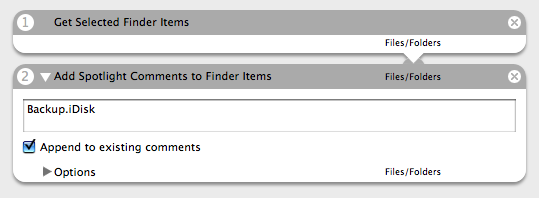
Select File -> Save As Plug-in…, give it a name and save is as a Plug-in for: Finder:
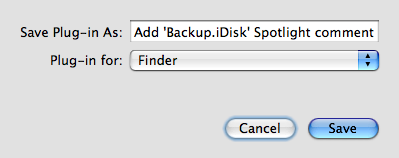
From now on we can simply right-click (or Control+click) any file we want to backup and select the plug-in we just saved from the Automator sub-menu.
Backup files
Now we need a way of copying the files we’ve selected. Open Automator and enter this workflow:
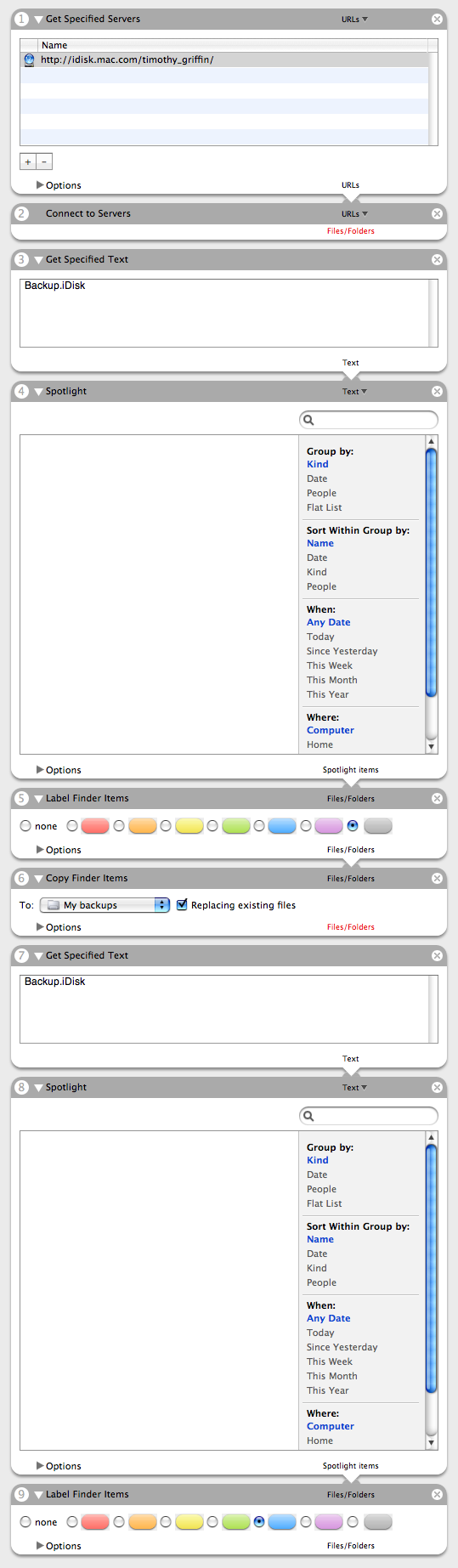
The workflow is basically doing:
- Select iDisk;
- Connect to iDisk;
- Enter text to search for;
- Find files containing specified text;
- Label matching files grey;
- Copy files to My backups folder on iDisk;
- Enter text to search for (i.e. repeat step 3);
- Find files containing specified text (i.e. repeat step 4);
- Label matching files blue.
The purpose behind steps 5 and 9 is so I can tell if the workflow failed - this is indicated if any files are still coloured grey after the workflow has run.
I’ve set my workflow to copy the files to my iDisk - if you want to copy them somewhere else, e.g. an external hard drive, then just omit steps 1 and 2.
Select File -> Save As…, give it a name and make sure you select File Format: Application.
And that’s about it - you can mark whichever files you like and run the workflow to copy them to your chosen location.
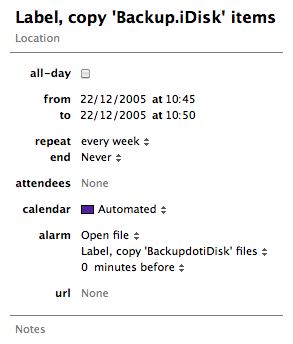
If you want it to run automatically once a week, for example, then you can just add an event to a calendar in iCal and set the alarm to Open file and select your saved workflow application: