Launch and quit applications on another machine via AirPort using Proxi  4
4
With the acquisition of my shiny new MacBook I set about making sure I could access everything on my iMac (which is in the bedroom) from wherever I happen to be laptopping it up (the lounge, conservatory, kitchen, Erica Campbell’s bed1).
To access files, documents etc. that are stored on the iMac hard drive(s) I simply need to make sure it’s switched on and that Personal File Sharing is turned on (which can be found in the Services tab of the Sharing pane in System Preferences), then on my Macbook I can mount any drive connected to my iMac as a network drive. However, to access things like my music, videos or photos I need to first share the appropriate library (iTunes, for example) and the app in question needs to be running on my iMac for the library to be available.
This is fine but for the fact that it (the iMac) is usually running some task (I treat the poor thing like a workhorse) and I’d prefer it to be able to use as much of its meagre processor (1.25GHz G4) and memory (768MB) as it can to get the job done as quickly as possible (remember: it takes this machine over seven and a half hours to encode an hour and a half movie at my preferred quality).
So, to avoid having to: a) have iTunes, iPhoto et al running all the time and using up precious resources; and b) go back and forth to the iMac to launch and quit them as and when I need them, I turned to Proxi.
Proxi is Griffin Technology’s handy little application that lets you “customise Mac OS X” (according to the blurb) or, more specifically, it allows you to sets tasks of all sorts to run on certain triggers. It lets you do things like launch an application or run an AppleScript when a hot-key combination is pressed or at a certain time of day — there are lots of triggers and tasks available but the trigger I’m interested in is the Folder Monitor.
The preparation
On the desktop computer (e.g. my iMac) create a directory named Launch pad and within that create a sub-directory named Outer space. Of course you can name these directories whatever you like but I try to be different … just like everyone else.
Create aliases of the applications we want to be able to control and copy them into the Launch pad directory — I found the best way to do this is to first drag and drop the Launch pad folder on the dock (so it’s easy to get to), open up your Applications folder and then drag and drop each required application into the Launch pad folder (via its icon in the dock) whilst holding down Option+Command (‘Option” is also known as ‘Alt) as this ensures that an alias is created rather simply copying or moving the application.
Setting up the launch
In Proxi’s editor drag the Folder Monitor trigger into the triggers column and set it to watch for additions to the Outer space directory:
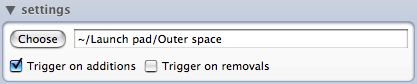
Now drag the AppleScript task into the tasks column, select Run custom AppleScript and enter the following script:
tell application "Finder"

  if exists file ("Hard One:Applications:[Filename]")

    tell application "[Filename]" to launch

    delay 20

    set the visible of process "[Filename]" to false

  end if

end tell
… but you need to replace “Hard One” in the second line with the name of your hard drive and also replace all occurrences of [Filename] by dragging Filename from Proxi’s values window:
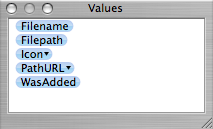
… so the finished script looks like this:
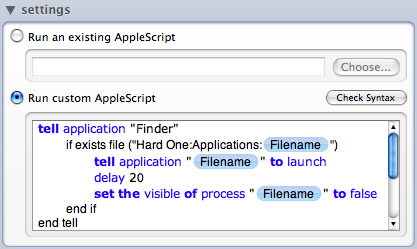
The upshot of this is that if you were to drag and drop a file into the Outer space folder then Proxi will (via the AppleScript) look for an application of the same name and, if it exists, launch it and hide it after twenty seconds (for neatness, y’know). Remember making aliases of your applications earlier? Well, this makes things easier for us because they: a) already have the same name as the application, and b) have the same icon so it makes identification easier if you’re in a hurry.
Quitting
Now launching’s sorted, we need to be able to quit things, too.
Again, in Proxi’s editor drag the Folder Monitor trigger into the triggers column but this time set it to watch for removals from the Outer space directory:
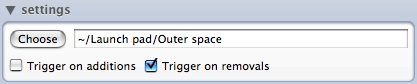
Now drag the AppleScript task into the tasks column, select Run custom AppleScript and enter the following script:
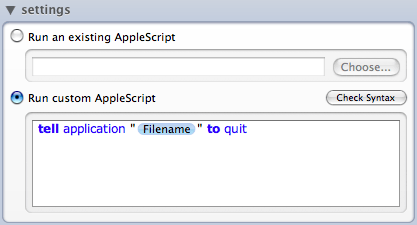
tell application "[Filename]" to quit
… and again you need to replace [Filename] by dragging Filename from Proxi’s variable window, so the finished script looks like this:
Is that it?
Yes, that’s about it. Barring any mistake on my part (and please, feel free to let me know if you have problems) all you need to do now is connect to your desktop Mac’s hard drive or home folder (wherever you created the Launch pad folder) from your other Mac and move an application’s alias into the Outer space folder to launch it … and move it back out to quit it.
You could also do this using OS X’s own folder actions but I’ve already got Proxi doing many other tasks for me and it’s useful to be able to add Proxi’s variables to the scripts.
Please note that I’m running OS X 10.4.8 and Proxi v1.3 so things may differ if you’re running different versions — the OS X version shouldn’t really matter as long as Proxi itself runs but I’m guessing having the same version of Proxi (which is the latest as I write this) might make a difference.
Also note that my scripts are quick and dirty with no check to see if the specified applications are already running or have unsaved data. That’s me all over: quick and dirty!
1. If I did have the good fortune to find myself in Erica Campbell’s bed then rest assured I most certainly would not be worrying if my iMac had enough free memory or not.
 Completely off topic, but since you’re the expert… If I get automator to open a Safari window, how do I get it to close it again afterwards?
Thanks buddy! - Andyk
Completely off topic, but since you’re the expert… If I get automator to open a Safari window, how do I get it to close it again afterwards?
Thanks buddy! - Andyk
Expert?!?? I, er …
To close the window or to quit Safari? The latter is easy with some AppleScript and I even think there’s a “Quit Application action out there somewhere. But just to close the window … hmmm … not too sure about that - I’ll have a tinker when I’ve got a mo’. - Timmargh
Yes… expert… you! It has to be closing the window because sometimes the action will fire while I’m using safari, so I don’t want it to close what I’m working on… - andyk
I’ve never found myself in Erica Campbell’s bed but I did once find a five pound note down the back of the sofa. Not quite the same thing but an enjoyable experience none the less.
Glad to hear that you are having fun with your new toy. - McV
Comments