Delay start-up items to make them quicker  14
14
I don’t know about you, but whenever I start/restart my Mac I hate the way that, when it’s got to the desktop, it tries to launch all the start-up items at the same time and so your hard-drive is whirring like mad, hopping back and forth and splitting its time between each app. Some of my menu bar items that launch at start-up are standard apps, i.e. non-system stuff, so I tried altering the way they launch by delaying them for a certain time to allow other stuff to start first.
The first thing to do was to identify which of my login apps could be launched manually. Taking my menu bar as an example:

- Proxi;
- iScrobbler;
- AirClick;
- Synergy;
- Salling Clicker;
- MenuCalendarClock;
- AppleScript menu;
- Bluetooth;
- AirPort;
- System volume;
- Fast user switch;
- Spotlight;
Numbers 7 to 12 are system menu bar items and numbers 4 and 5 are System Preferences panes - none of these, as far as I know, can be launched individually. Number 6 automatically adds itself to the System Preferences -> Account -> Login Items list when it’s launched so we can forget that one, too.
This leaves us with numbers 1, 2 and 3, all of which can be started manually and told not to start at login … which is what we need to do next: this is either done within the app’s preferences (usually a Start at login check-box or something similar) or by deleting its entry in the System Preferences -> Account -> Login Items list.
I figured I could use Automator to do what I wanted but, for those of your who prefer it, I also did it using AppleScript.
Automator method
This is a relatively easy workflow to create - the Pause action can be found in the Automator library and the Launch Application action in the Finder library:
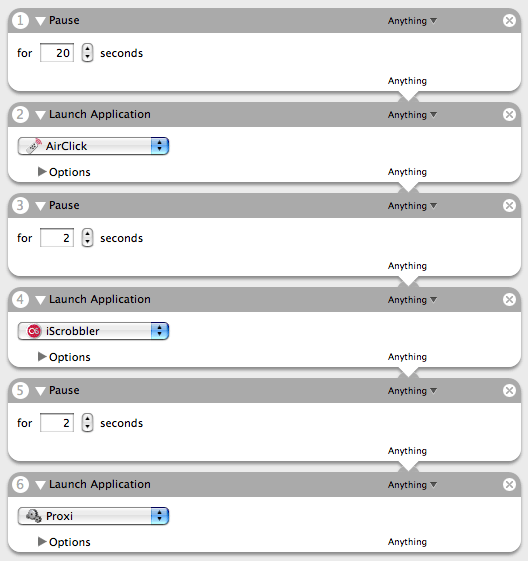
Change the app names to suit your set-up and experiment with the delays that work best for you - presumably newer and faster Macs than my iMac G4 will be more suited to shorter delays.
Select File -> Save As…, give it a suitable name and location and make sure you change the File Format: to application.
AppleScript method
Fire up Script Editor (usually located in Applications -> AppleScript) and enter something like:
delay 20

tell application "AirClick"

  launch

end tell

delay 2

tell application "iScrobbler"

  launch

end tell

delay 2

tell application "Proxi"

  launch

end tell
The delay command tells it to wait for that many seconds and the tell application "..." / launch / end tell launches the specified app - pretty simple stuff.
Change the app names to suit your set-up and experiment with the delays that work best for you - presumably newer and faster Macs than my iMac G4 will be more suited to shorter delays.
Select File -> Save As…, give it a suitable name and location and make sure you change the File Format: to application.
Starting the, erm, delayed start
Finally we need to add our workflow or script to our login items: go to System Preferences -> Account -> Login Items, click the ‘+’ button, navigate to wherever you saved your workflow or script, select it and click Add.
And now you can restart your Mac to try it out.
 Excellent stuff, Tim. We have an older iBook here and this will come in quite handy to make starting up less painful. Thanks for this! - MHC
You’re welcome. - Timmargh
Nice tutorial
i obviously use too many system menubar items as only have 3 non-system ones (though that’s mostly cos of my customised menubar clock that takes up half the spacce).
I also think the slowness of my mac is largely to do with the fact that i should replace it, but until apple make a mac that i actually like again i’m gonna keep putting it off *cough* intel mini was a let down *cough* - stonysleep
Thanks for sharing. Now I have an idea in dealing with my own Mac. Thanks Tim. - Neil Crespi
wow! You always find amazing new uses for automator. - LobsterMan
I tried this and it works wonderfully. Thanks for your great work. - Don Perreault
I’m using it now too. It makes it start-up everything alot quicker. Thanks Tim. - Stretch
Wow, I thought I’d be the only one to benefit from this - it’s nice to hear I’ve done a little good for once.
The idea popped into my head just as I was dozing off one night - I woke myself up and emailed it to myself from my mobile/cell phone … how sad is that?!? - Timmargh
This is really great stuff, I’m definitely going to try it out after I do the stuff I’m procrastinating doing. :) I think Automator is probably the most underrated app Apple has introduced in years, likely because most people, myself included, just aren’t creative enough to see how helpful it can really be. From the times I have played with it, I’ve mostly been annoyed, 1) because it often seems like arbitrary actions are missing from the library (ones that do exist, upon inspection, in applescript), and 2) there’s no looping, if/then, etc support (from what I can tell). So I either give up on my idea or, if it’s terribly important, blunder my way through applescripting whatever I need. I look forward to reading more of your Automator tricks, though, and maybe I’ll become as enamored of it as I desperately want to be! - Becky
An update: I did this using the Automator method. Then I decided to go ahead and add in the regular apps I always have running — Mail, NetNewsWire, Quicksilver, iTunes, etc. That leaves you with a bunch of open windows, so I used the Automator action “Run Applescript” with the following script:
tell application “Finder”
activate
set visible of every process whose visible is true and name is not “Finder” to false
if the (count of windows) is not 0 then
set collapsed of every window to true
end if
end tell
which has the effect of doing “Hide Others” from within the Finder, then minimizing any Finder windows that are open to the Dock, showing a nice pretty Desktop. Works like a charm! - Becky
Nice one, Becky. - Timmargh
Thanks for the tip. Funny… You mentioned that the idea came to you as you were dozing off one night. It is currently 1 am in my area. I just finished restarting my mac after an update and was annoyed with how long my restart was taking. I was just falling asleep when I began to wonder if one could do this with Applescript or Automator… so I was looking up if anyone had yet. Google sent me here. - Gabe
@Becky: May I suggest that you look into “Spirited Away” It is an app that automatically hides all non used windows. - gabe
Nice little trick! - Nasim
Comments